Showing posts with label tv. Show all posts

Sunday, August 12, 2007

Simpsonize'd

Who am I to not join in on a blogging trend?

Via Simsonize Me, my wife and I visiting the Kwik-E-Mart:

Sunday, July 01, 2007

PBS's "The Supreme Court" Re-airing

PBS's The Supreme CourtIf there ever had been doubt - I am officially a dork. I probably watch more programming from PBS than any other network. Maybe it's so I can feel less bad about being a TV-junkie (although I watch a lot less than the average American's 30 hours a week...) because at least the TV I'm watching is making me smarter, right?

Anyway, one of the best documentaries I've watch on PBS in the last year or so was it's series on The Supreme Court. That series is being re-run this week on my local PBS station (WXXI).

If it's being re-run near you, I highly recommend watching it. It's airing at 10AM where I am, so this is more of a "TiVo-opportunity" than watch-live kinda thing for most, but anyway - in my judgment, it's worth TiVo-ing and watching.

Thursday, June 28, 2007

AppleTV: Recovering From the YouTube Update

On June 20th, Apple released what is now referred to as "the YouTube Patch". Being an AppleTV owner, I thought "hey - cool" and, on the evening of the 20th, told my AppleTV to run the update.

For your average user, this probably would have been the end of the story. It gets more complicated for me because I've hacked my AppleTV.

I did have the presence of mind to scp all the files from my "OSBoot" partition to my PowerMac G5 before doing the update. I, regrettably, did not have the forethought to check with the fantastic community over at AwkwardTV though. Had I done so, I probably would have held off on doing the update so immediately and ultimately used the "Safe Update" directions they churned out impressively quickly.

So, in my haste, I wound up having to spend some time getting things back in place (getting my AppleTV "re-hacked"), and, should anyone else find themselves in the same predicament, I thought I'd share what I did.

First - let me give some explanation as to what the update did compared to what I expected it would do.

With some familiarity with the various components ("plugins"; those *.frappliance directories that live in the /System/Library/CoreServices/Finder.app/Contents/PlugIns/ directory on your AppleTV), I figured the way Apple would enable YouTube-functionality was to simply beam a new "YouTube.frappliance" into my AppleTV's Finder.app/Contents/PlugIns directory and restart. Painless and clean. And not at all how they did it.

Apparently, Apple had bigger plans for their update. Their update process downloaded a 179MB .dmg disk image ("2Z694-5248-45.dmg" -- see the AwkwardTV wiki for more info). Then it becomes a little fuzzy as to what happened. Initially I thought it just over wrote the existing "OSBOOT" partition with this disk image. On closer inspection it doesn't seem to be quite that simple. Although a lot of files were replaced / removed, and a couple added, some files I had created on the AppleTV did not get blown away, including my ~frontrow/.ssh directory and a /etc/rc.local script I wrote (among perhaps others).

But, that "a lot of files were replaced / removed" part did present a problem.

Of most significant consequence, sshd got deleted. And the things I added to Finder.app/Contents/PlugIns/ had also been removed (and, some other changes would have made them no longer be loaded had the plug-ins I put in that directory not been removed).

So, step one of fixing things as the same as step one when I initially hacked my AppleTV: open up the AppleTV and copy over sshd. That all went smoothly, although the repeated "opening ups" of my AppleTV are taking a toll on the sticky-ness of the adhesive that keeps the rubber foot nice and secure on the bottom of the AppleTV.)

Following that, I was able to boot with sshd enabled and install Perian just like before as well. Where I ran into trouble though was mounting my media library from a remote server.

Previously I simply used mount_afp. Following the update, the mount_afp binary had been deleted though. I tried copying the binary from the backup I made before the update. Still - no dice. As noted on the AwkwardTV wiki, I can confirm it seems kernel support that mount_afp relies on is gone, and trying to run it on an updated AppleTV just gives errors.

I decided to change my approach and use SMB instead of APF. The mount_smbfs binary had been deleted along with mount_afp, but fortunately Sharity Light, an open source SMB implementation that runs in user space (rather than at kernel level) exists - and the AwkwardTV wiki, in usual form, had great directions on how to get it set up. (As an added geek bonus, you can "download" the compiled binary by copying the text of the binary having been base64 encoded. Good times.)

At this point, I needed to log in to my PowerMac G4, on which my media library resides, and enable SMB, or as it's called in the "Sharing" preference pane in "System Preferences", "Windows Sharing". At least - that's what I thought I needed to do. Doing that winds up only sharing user directories. My media library is on it's own separate drive in the G4, so using the built in "Windows Sharing" didn't get me what I needed.

Enter SharePoints. It's a slick little application that lets you define your own, well, share points for SMB on OS X. Install it on the G4, configure it ... finally, I can mount my media library on the AppleTV again.

And now we've finally reached the final step - installing the ATVFiles plugin. Similar steps compared to how I did it initially, although it's important to get the new version of the plug-in (the old version apparently doesn't work after the update).

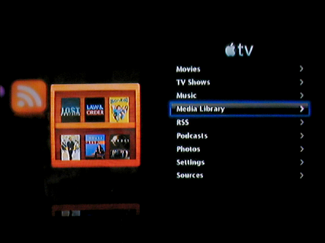
Screenshot of my AppleTV, after being 're-hacked'

Wahoo! I can get to my media library from my couch again. :)

Monday, June 04, 2007

Charlie Rose - Promoting Discourse

I've recently become a fanatic of the fantastic Charlie Rose TV program.

On my PBS station, Charlie Rose is on from 11:30PM - 12:30AM, and often I'll wrap up my "planned" TV watching around then and then quickly flip through some channels before calling it a night. As a result, by accident, I wound up discovering the Charlie Rose program.

The format of the program is exceptionally basic. Charlie Rose sits on a stage with a totally black background and invites one or several people to sit with him at a table (which he calls "the table") and he interviews them.

The interviewed guests are always people of influence, but their areas of expertese range broadly. Thinking of guests off the top of my head, he's had on President Bush, Jimbo Wales, Lee Iacocca, Henry Kissinger, Quentin Tarantino, Warren Buffett, and Al Gore -- all in maybe the last 6 weeks.

The charm of the Charlie Rose program doesn't fully lie with the guest list though. It comes from the interview style of Charlie Rose. He asks good questions. The political guests he has you can usually find on the Sunday morning political shows, but there, even my favorite Sunday-show host, Chris Wallace, fails to ask questions like Charlie Rose does.

What makes the questions good is that they are questions that give the guest a chance to talk. The questions require a response that can't just be given using stale talking points. The guest has to go deeper -- explain what they mean -- fully lay out their opinion.

And Charlie Rose lets them talk. Bill O'Reilly tries to run what he deems a "no spin zone" by constantly cutting people off. Charlie Rose (refreshingly!) takes the opposite approach. If a guest were to answer using a bunch of spin, he'd let them, but then just follow up with a question that would force them to take their answer to a level of intelligent dialog.

The Charlie Rose program would also trust that you, the viewer, are smart enough to see through when people answer with spin. And, while I think Charlie Rose leans left (he seems to get more excited and ask questions that are a bit more friendly to left-leaning political guests), he does not seem to have any agenda other than asking intelligent questions of intelligent people and letting them respond.

Ahhh, at last, refreshing public discourse in today's public square (which, of course, is the television :-p)!

As an added bonus, the Charlie Rose program puts it's recent programs out on Google video. As a double extra bonus, I discovered CastCluster which lets you capture videos from YouTube and Google Video and put them into your own personal video podcast. And, if you've been paying attention, you can probably pretty easily figure out why having my own personal video podcast of Charlie Rose programs is compelling for me.

Sunday, June 03, 2007

Hacking My AppleTV (Replacing the EyeHome, Pt. 3)

I recently purchased an AppleTV for the expressed purpose of replacing an Elgato Eyehome which died on me.

In an earlier post I gave a general review of the AppleTV relative to it's out of the box functionality. That's all well and good, but the number one use of my late-EyeHome (what it spent about 95% of it's time doing) was playing TV shows I had recorded and encoded as XviD video files. Out of the box, the AppleTV doesn't play XviD files. Furthermore, the AppleTV can only access media files you manage in iTunes, and I have no intention of putting my "media library" of XviD files into iTunes.

Fortunately, almost as soon as the AppleTV was released, people started hacking it. Under the hood, the AppleTV is basically an Intel-mac running a stripped down MacOS X. As a result, the AppleTV's potential is about the same as any Mac's (which is a lot of potential!). To those hackers, especially the very fine people over at AwkwardTV: THANK YOU! You all rock.

Introduction [#]


This blog post is basically a run down of the steps I took in hacking my AppleTV and some commentary on how things went. This information is pretty well documented elsewhere, but I did hit some "snags" that I had to be creative with. Hopefully soon I'll find motivation to consider joining the AwkwardTV community and put this stuff in their Wiki. For now I'm simply documenting it here though.

Working To Get SSH Installed [#]


The first order of business the hacking sites direct you to do is throw the SSH daemon on your AppleTV. It's good advice. Once you have SSH installed, you can issue commands, upload files, whatever.

Deciding On a Hacking Method [#]


Getting SSH on the AppleTV is pretty easy, too. The hardest step for me was deciding how I wanted to do it. There are to main ways. One is to open the box, take out the hard drive, hook the hard drive up to another Mac, and copy SSH over. The second is using what the AwkwardTV community calls a Patchstick. You basically create a bare bones OS X installation on a USB drive (flashdrive or otherwise), have that OS X installation run some scripts when it boots, and then boot the AppleTV from that USB drive.

The consensus of the Interweb is that physically opening the AppleTV voids your warranty but using the Patchstick doesn't. I'm not sure how valid of a conclusion that is, but it made me inclined to try the Patchstick method.

Unfortunately, in attempting the Patchstick method, I very quickly came to a roadblock. To do the Patchstick method, you need the boot.efi file from your AppleTV. Chicken and the egg: You need a hacked AppleTV to get the boot.efi file; you need the boot.efi file to hack your AppleTV. And, the boot.efi file is proprietary code to Apple, making it illegal to share on the internets. (Even if you could legally share it, I'm not wild about downloading OS executable code from sources I don't have a reason to trust...)

Opening Up The AppleTV [#]


So, plan B - open my AppleTV up. I followed this guide from MacWorld (which is really intended at upgrading your AppleTV's hard drive, but the first step of doing that is opening the case.)

To quote MacWorld, "the biggest obstacle - and it's more a psychological one than a physical one - is that the large rubber 'foot' that covers the entire bottom of the Apple TV is attached via adhesive." In theory, if Apple were to service an AppleTV and the rubber foot wasn't as adhesive to the bottom as a brand new one, they could "tell" you hacked yours. I assume this is where the warranty concerns come in, and for me this really did create a psychological obstacle.

Some good news: if you don't fully remove the entire rubber "foot" (and you don't have to!), it's totally un-obvious from looking that you ever removed it. And it does stay fairly sticky even after first pulling it back. If you undergo this method and are really concerned, get some adhesive to re-apply to the foot after you're done. If you re-apply some adhesive, I'm not sure Apple could ever really tell you pulled it up.

After the rubber "foot," 4 screws take the base off. Four more to detach the hard drive from the base, and then the hard drive is home free for you to play with. You will need a Torx-8 and Torx-10 screwdriver. I didn't have one. My first stop to get one was Walmart. They had Torx-10 stuff, but no Torx-8. Home Depot saved the day though. (Also, a lot of the Torx offerings are referring to "Torx" as "Star" these days...)

To connect the hard drive to my PowerMac G5, I simply used a standard 2.5" inch USB drive enclosure (search NewEgg or elsewhere if you need one). It worked great.

Copying The sshd Binary [#]


The next step is simply to copy the SSH daemon (sshd) to the hard drive. I followed these directions on the AwkwardTV Wiki. Effectively, I just created /System/Library/LaunchDaemons/ssh.plist per their example and then needed to copy over the sshd binary. Since I don't have an Intel-Mac (I have a PowerMac G5), this did present a bit of a challenge. In other places on their Wiki, and on other sites, people link to the OpenDarwin compiled binaries. The problem with that is OpenDarwin has shutdown. An alternative to this though is downloading a Darwin/X86 CD from Apple. (I downloaded from here.) It is kind of ridiculous that you have to download a 560MB CD image to get a 314kb file, but oh well. Once you download the ISO, on a Mac you can just double click it to mount the CD image as a drive. Then navigate to /Volumes/Darwin8_i386/usr/sbin and grab sshd.

Boot Up With SSH [#]


Now, just simply unmount the AppleTV volumes you mounted on your Mac (drag their icons to the trash), put the drive back in the AppleTV, screw everything back in place, and plug it back in.

Hack To Your Needs [#]


With SSH installed, you can now connect via, well, SSH. (See the linked steps in the Wiki if you don't know how to do this). SSH will let you execute commands as well as use scp to copy files over. The general way I copied files over was that I created a Downloads directory on the AppleTV (/Users/frontrow/Downloads) and copied files there first. From there I could use sudo mv to put them in protected places like /System/Library/CoreServices/Finder.app/Contents/PlugIns/.

Install Perian [#]


the AppleTV uses Quicktime to play it's media files. So, to play XviD files, you can simply install Perian on the AppleTV. I just followed the directions the Perian download provided, keeping in mind the real destination I was interested in was on the AppleTV, not my local Mac.

Install the ATVFiles Plugin [#]


The next step was to be able to browse to my existing media library. To do this, I decided to use the ATVFiles Plugin (I say that like there is a choice... there really isn't). I would up making two modifications to the standard version of the plugin. First, I modified InfoPlist.strings and Localizable.strings, replacing "Files" with "Media Library" because I wanted "Media Library" to be the text displayed on my AppleTV. I also replaced the icon that shows up on the left hand side when you select the "Media Library" option.

Default ATVFiles Plugin icon:
The Default ATVFiles Plugin Icon

My new icon (inspired by Delicious Library):
My Custom ATVFiles Plugin Icon

And, here's how it ultimately looks on the TV:


Mount the Existing Media Library via AFP [#]


The final step was to mount my existing media library, which resides on another Mac, to the AppleTV so I could browse it and play files off of it. The ATVFiles Plugin is set up to let you browse the files in /Users/frontrow/Movies, so in that directory I created a new directory called "media-1" (what my shared drive with my media files is called) and then I simply SSH'd into my AppleTV and executed the command mount_afp -r -i -o nosuid afp://[username]@192.168.0.XXX/media-1/ /Users/frontrow/Movies/media-1. The first time you do this, the command spits back a bunch of error messages, but it does work.

Success! (And, OK, a couple minor issues) [#]


At this point, everything pretty much just works.

One issue I did run into was that I tried installing the AwkwardTV Loader Appliance (ATV Loader Plugin) which is an AppleTV plugin designed to let you install other AppleTV plugins. It seemed to install OK, but then trying to use it didn't work. Installing plugins "manually" isn't really that hard though, so I just removed the ATV Loader Plugin without investigating further.

As for on-going issues, I am having some problems with some of my XviD files where the AppleTV starts playing them but they have no sound and if I try to skip forward, the AppleTV chokes and gives up on the file. This happens with maybe 1 in 5 files. The files play fine locally on my G5 in VLC, and they played fine on my old EyeHome, but they don't play correctly on the AppleTV or on my G5 using Quicktime Player. If I use Quicktime Player to extract the video feed to a new Quicktime file, then extract the MP3 audio from the file using ffmpeg and then open and import that MP3 audio into the new Quicktime file, the resulting self-contained Quicktime file does play fine, so I have a fairly painless work around (I plan to write a script to figure out which files fall into this non-working category [in QuickTime Player, the "bad" files show up claiming the audio track is like 72 hours long...] and convert them all automagically for me...). It's curious that not all ffmpeg created XviD files work "as is" with Perian though.

I also had the AppleTV totally freeze up on me today (pressing buttons on the remote did cause the light on the front of it to flash, but the video abruptly stopped and I couldn't SSH into the AppleTV) while playing an XviD file. I don't expect this to be a frequent occurrence though.

Finally, with my EyeHome set up, I had a directory called "25 Newest" in my media library which had symbolic links to the 25 newest video files. So far I haven't been able to get the AppleTV (within the ATVFiles plugin) to respect symbolic links. I haven't given up, but no luck so far, so no convenient "25 Newest" listing for me at the moment...

On the whole, the hacked AppleTV is doing a great job replacing my dead EyeHome. If anyone else is looking to replace a dead EyeHome of their own, assuming they are comfortable with opening up hardware and using SSH, I'd highly recommend they consider a hacked AppleTV as well.

AppleTV Review (Replacing the EyeHome, Pt. 2)

When my Elgato EyeHome digital media player died, I considered my replacement options and decided to replace the EyeHome with an AppleTV. After welcoming the AppleTV into my home about five days ago, I've found that the AppleTV has a fair amount of room for improvement, but on the whole I'm quite happy with it.


Initial Impressions


The AppleTV continues in Apple's tradition of making products with great design that "just work." I've read some articles that compare it to a "headless iPod" and that's a pretty good analogy. Like the iPod, the AppleTV has a very intuitive (and attractive) interface and mostly you just plug it in and it takes care of the rest.

The first time you plug it in, you are asked what language you want, what TV resolution you want, and then it displays a numeric code you need to enter into iTunes. After entering the code, you are off and running. The AppleTV, like an iPod, syncs all the media content (TV, Movies, Music, Podcasts, Photos, etc.) on your computer to itself.

Additionally, the AppleTV allows you to alternatively stream the content from your computer instead of sync-ing it. You can turn sync-ing totally off, or while sync-ing is on, you can also manually connect to your computer to stream from it. It's nice to have both options. Effectively the AppleTV only syncs things that are "checked" in iTunes (just like an iPod). But, the streaming functionality allows you access anything you have in iTunes, checked or not. I uncheck things regularly because I have a lot more media content than will fit on my 30GB iPod which makes it quite nice that I can still get to all this "unchecked content" via streaming.

One of the most slick features the AppleTV boasts is the graphical previews it shows for all your media content. If you've set up album art for your music, the AppleTV leverages that album art for this purpose (and does so very nicely). Similarly, for video content, when appropriate, the AppleTV shows a still frame from the video content for previews, also nicely done.

Cover Art and Video Previews on the AppleTV

An additional feature I can't get enough of is now being able to play video podcasts somewhere other than on my computer screen and iPod. It's like personal on-demand television. It's fantastic. One downside related to this though is that the AppleTV doesn't support podcast-based playlists. iTunes and the iPod do, and it would be nice if the AppleTV did as well.


Answers to My Two Concerns


In my analysis of a replacement for my dead EyeHome, I had two concerns about the AppleTV that I couldn't find definitive answers for on the Interweb.

The first was "will the AppleTV, which lists a requirement of a high-definition widescreen TV, work with my non-widescreen, non-HD Sony WEGA KV-27FS100 TV?". The second was "will content with a 4:3 aspect ratio display without extra letterboxing?".

The answer to my first concern is a slightly-reserved (but still enthusiastic) "yes!". Using the AppleTV at it's 480i resolution, and hooking it's component video outputs up to my TV's component video inputs works.

The slight reservation in that "yes!" is that the AppleTV always sends out a signal that uses a 16:9 aspect ratio. So, when it plays 4:3 content, it "letterboxes" the content with black bars on the left and right sides to "fit" the 4:3 content into a 16:9 aspect ratio. For me, this means I keep my TV in it's "16:9 enhanced mode" while it's using the AppleTV. Things look nice in this mode, but all my 4:3 content is "double letterboxed" (there are bars of black on the top, bottom, left, and right sides). Fortunately, most of the content I watch uses 16:9 resolution. Additionally, I'm finding watching double letterboxed content a lot less annoying than I assumed I would, especially when watching stuff when it's dark outside (and the black borders simply fade into the darkness around the TV).

Example of double letterboxed 4:3 content on my AppleTV


What Could Be Better


Well, as I already mentioned, two improvements would be to allow 4:3 content to use the full screen on 4:3 TVs and support playlists of podcasts.

Some other things that would be nice would be to let you cycle through the same options as on the iPod for music (lyrics and star-rating aren't available). Of course, the remote doesn't really have enough inputs for this. (I see the value in keeping the remote simple, but it is sorta limiting.) More internet-video sources would also be nice, although Apple has announced forthcoming YouTube support and 3rd party plugins (if you are willing to hack your AppleTV) support things like Joost.

And, I've presently gone the hack-your-AppleTV route so that mine can support XviD content (what my current media library of recorded TV is in). This two would be nice to be "out of the box."

Finally, adding DVR-recording capabilities would make the AppleTV "super-compelling" (and shut up reviewers who can't stop belittling the AppleTV for lacking the feature).


Conclusion


On the whole, the things I expected to work out of the box all work, and they work well. There are plenty of nice-touches. For video content, the remote lets you skip (forward or backward) about 1 minute at a time (think the coveted "30 second skip" of TiVo) or you can also fast-forward/rewind at two different speeds. Videos also "remember" where you stopped playing them (like on the iPod) so you can stop watching and pick up later. And, as though I haven't harped on this enough, the UI is very clean and polished.


Sidenote: I took a bunch of pictures of my TV working with the AppleTV. Please note most have been cleaned up a bit (which feels a little like "cheating"). But, getting a good shot of something giving off light (like a TV) is a bit of a challenge. They are over on Flickr: here.

Monday, May 28, 2007

Replacing the EyeHome

As I blogged about earlier, my Elgato EyeHome died. I'm writing this post as I consider alternatives to replace my dead EyeHome.

New EyeHome Alternative


Getting a new EyeHome is out of the question. Elgato has discontinued it. (And even if they hadn't, I'm not inclined to buy more hardware from Elgato given that the EyeHome died on me in under three years...).

Syabas-Based Alternative


I could do something very similar to a new EyeHome though. The EyeHome is basically an Elgato-packaged version of hardware and software made by Syabas. Other vendors have produced their own Syabas-based products such as:
  • I-O Data's AVeL LinkPlayer 2.
    (This blogger did a setup with a LinkPlayer 2 and EyeTV 500.)
    Like the EyeHome, it doesn't seem like this product is being actively sold anymore either; Can't find a retailer with them in stock. New-in-box ones seem to regularly show up on eBay though where they fetch about $170, including shipping.)

  • Neuston's Virtuoso MC-500
    Like the EyeHome and LinkPlayer 2, it doesn't seem like this product is being actively sold anymore either; I can't find any retailers selling it, nor can I even find any on eBay...

Some other products that would probably also work (which are listed as having Syabas middleware) are listed on the features page of the Wizd project. Wizd looks to be an open source project to provide an alternative to the default software that comes with these devices (in my case, the "EyeHome software"). Googling a couple of them though, I couldn't find any that are actually still being sold (just like the EyeHome and the two above)...

The advantage of going with a Syabas based replacement is that I think it could pretty much be in a "drop-in" replacement (very little work on my part). Unfortunately, it doesn't look like any of these are still being supported by their manufacturer, and since my EyeHome died, I'm not thinking too highly of going with something based on the same technology...

A UPnP-AV Based Alternative with EyeConnect


A second alternative to consider would being getting the EyeConnect software from Elgato and whatever UPnP-AV supporting hardware I want. (OK, I guess it would probably be safer to go with something Elgato lists as tested to work.) A lot of the devices listed there actually look to be Syabas-based devices from above, in which case I should actually be able to just get the device if I wanted and wouldn't need EyeConnect. Although, as previously discussed - most of these devices don't actually seem to be purchasable. Googling some of the devices listed for EyeConnect that I didn't come across while looking for Syabas-based devices, they also seem to be "unpurchasable."

Being "unpurchasable," these alternatives are narrowing themselves out... Additional negative of this alternative: Giving more money to Elgato, who's shoddy product (the dead EyeHome) has put me in this situation to begin with...

Mac Mini Alternative


The blogger I mentioned above as using a LinkPlayer 2 with an EyeTV 500 actually also blogged how he replaced his LinkPlayer 2 with a Mac Mini. It has potential. I could throw FrontRow on there and I think that would be a pretty nice setup. The Mac Mini can actually play EyeTV 500 content on it's own (and EyeTV has FrontRow integration). Since my TV doesn't have DVI or HDMI though, I'd have to convert down to S-Video which feels like a big loss if I'm going to play the HD content recorded by the EyeTV 500 directly. Also, starting at $599, the Mac Mini isn't cheap (for this purpose; it certainly is rather low priced for a full fledged computer...).

AppleTV Alternative


The final alternative that comes to mind... AppleTV.

It's $299 price tag hurts a lot less than $599 for the Mac Mini.

Some drawbacks:

First, out of the box, it doesn't support the XviD video format, which is what my entire TV library (like 300+ GB) is encoded in. I could transcode it all, but, ick. Fortunately, hacks exist to get around this. Of course this means more hassle than a hoped for "drop-in" replacement like a Syabas based replacement. The hack, of course, is also a hack that likely voids my warranty...; Of course I can also leverage the hack to enable lots of other fun things like YouTube and RSS and NES emulation. Oh -- fun, fun, it looks like there is a way to boot using a USB stick to patch the Apple TV without voiding the warranty...

Second, there is a question of "will it work with my non-HDTV, non-widescreen TV"? I think so, but it's not super clear-cut. The AppleTV Tech Specs page says you need an "Enhanced-definition or high-definition widescreen TV capable of 1080i 60/50Hz, 720p 60/50Hz, 576p 50Hz (PAL format), or 480p 60Hz." My TV, a Sony WEGA KV-27FS100, isn't widescreen and doesn't support 1080i, 720p, 576p, or 480p. However, it does have component video inputs and the AppleTV has component video outputs. And, although not listed in those technical specs, the Rouge Amoeba reports the AppleTV also supports 480i (which my TV's operating instruction booklet explicitly states it does support) and they were able to use the AppleTV in 480i with a TV similar to mine.

Third, some people have reported/speculated that when playing 4:3 video on their AppleTV, the AppleTV adds black bars to the sides of the image to force the output to be in a widescreen resolution. If this is the case, on my TV, the video will have those black bars on the sides and then additional black bars on the top and bottom to compensate for the video being "widescreen" so I'll have tiny 4:3 content in the middle of my screen with black bars all around it. Yick. Going back to that Rouge Amoeba article though, they did not experience this (and the pictures they include, of 4:3 content, prove it), so maybe this was all speculation. (And, I'd find it surprising that the AppleTV would add bars to the output, INHO, it should be up to the TV/monitor as to if it wants to add letter boxing, it shouldn't be a responsibility of the video source.

Now, some additional benefits:

First, the iTunes integration will be nice. I'll have immediate access to all my video podcasts, which will be slick. And, if I start buying moves in the iTunes movie store, I can access those as well. Having all my (audio) podcasts will be nice too; my EyeHome didn't like low-bit-rate, mono-channel MP3s, so it didn't handle most of my podcasts which was a pain. Also, initially (I believe) the EyeHome did play some of the protected music I purchased from the iTunes music store, but it can't play anything recently purchased, and with the effective death of JHymn, this has gotten to be a pain. (The "better solution" to this is getting rid of DRM but that's a rant for another day...)

Second, when I finally get a HDTV, I won't have to replace this part of my system.

Third, h.264 is a fantastic video codec and unlike the EyeHome, the AppleTV knows how to play it. I will probably stop encoding my recorded TV as XviD and probably move to h.264, saving hard drive space along the way.

AppleTV

OK. I'm sold on giving the AppleTV a go. Looks like I'll be stopping by the Apple Store tomorrow...

When a Digital Spoke Breaks; Death of an EyeHome

Well, I've wanted to blog about my DVR / digital hub setup for quite some time now. And now I finally have, so I can use it to provide some context for this post.

One of the key elements of my "digital hub," the Elgato EyeHome died this weekend. I was watching a very old recorded episode of Saturday Night Live, on (by coincidence) Saturday night. Part way through the episode, some random interference lines showed up going across the screen horizontally. Eventually, the picture froze and the EyeHome went unresponsive to anything I did on the remote control (stop, power-off, etc). After unplugging it and plugging it back in, I can tell it's getting power because the red light for the optical-audio port lights up, but the light to indicate the EyeHome is connected to the network doesn't turn light up and it doesn't respond to the power-on button via the remove control.

Having searched the Interweb, this apparently isn't an unusual occurence.

Having a "digital spoke" breaks really does interrupt one's "digital life". And now it's on to figure out how to replace this particular "spoke". Stay tuned, I plan to blog my research on alternatives with the thought such information may be useful to someone else down the road.

Finally, a bit of a rant. It's always very disappointing to me when electronics break. I can understand hard drives, fans, etc. -- things with moving parts. Wear and tear. OK. I get it. Things wear out. But non-moving-part electronics should be designed to last for a very long time. My EyeHome wasn't even three years old and it has zero moving parts... (nothing to wear out). Shoddy quality like this really does not speak very well for Elgato. I'm not bothering to contact them because I'm sure the warranty has been up for some time, and they don't actually even make or sell EyeHomes anymore (not a bad choice considering the new competition). However, if my EyeTV 500 breaks anytime soon, I'm really not going to be a happy camper...

My DVR-Digital Hub

I have resonated with the notion of "Mac as a digital hub" since Apple started calling the phenomenon that back in 2001. Like many Mac (and, these days, Windows and Linux) users, my "digital hub" includes the usual cast of characters: my iPod, my digital camera, my digital camcorder, my printer, my scanner, and my cellphone.

Unlike most though, it also includes DVR capabilities using two products from Elgato Systems: the EyeHome and the EyeTV 500.

Here's a picture of the DVR portion of my "digital hub":

The DVR portion of my Digital Hub

Using the EyeTV 500, I'm able to record "Over The Air" HDTV content to my PowerMac G5.

Sidenote:
I think most people are under the impression that in order to get HDTV content you need cable television or satellite television service. Not at all. Most local broadcasters who broadcast an analog signal (the kind you can pick up with just your TV and some bunny ears) also broadcast a digital signal that you can pick up "over the air".

Here in Rochester, NY, I'm able to pick up CBS (WROC-TV), NBC (WHEC-TV), ABC (WHAM-TV), PBS (WXXI), and FOX (WUHF). And, even better, digital television channels can have sub-channels, so I also get a sub-channel from WHEC-TV that continually runs the weather forecast, a subchannel from WHAM-TV that shows The CW, and WXXI actually consists of a total of four sub-channels: WXXI-HD, a full-time high-def programming; WXXI-Q, educational programing; WXXI-Create, "creative" (cooking, arts, travel) programming; and WXXI-TV, showing what the WXXI-TV 21 analog channel is airing.


Back to the specifics of the EyeTV. Similar to TiVo, the EyeTV software lets you schedule what programs you want to record. The software also lets you play back the recorded content (and the hardware comes with a remote for this purpose). It also has an "edit" mode that you can use to remove chunks from the recording (so you can remove commercials). And it also lets you export your recorded (and, if you edited them, commercial free) TV to various video formats.

That's all nice and good, but I have no interest in watching recorded TV on my computer screen. A TV and a couch provide a much more enjoyable experience.

Here's where the EyeHome enters the picture. If you are thinking in TiVo-terms, the EyeTV is the "recording half" of a TiVo, and the EyeHome is the "playback half".

The EyeHome hardware connects to your TV (and/or stereo receiver) and then hooks up to your computer via your network. In addition to being able to playback video files from your computer, it can also show the photos you have in iPhoto and play the music you have in iTunes. I actually got my EyeHome before my EyeTV and used it just for the music playback capabilities.

I should probably also mention that although the EyeHome can play video directly recorded by most EyeTV models, but it can't play back the raw video files recorded by the EyeTV 500 (which is the HDTV EyeTV; the one that I have). The reason is that the video files are actually too big for the EyeHome to handle. The digital TV captured from over the air by the EyeTV 500 comes in at one of several resolutions, such as 480p, 720p, 1080i, etc. The EyeHome doesn't support playing video with a resolution greater than 480p.

That's actually OK by me because my TV, as much as I love it, isn't a HDTV. It has a "16:9 enhanced mode" which looks quite nice, but it's no HDTV.

The other reason I'm perfectly OK with the reduced resolution is that high resolution video takes up a lot of hard drive storage space. One hour of video captured by the EyeTV 500 can actually take up as much as about 8GB of space.

So what I do, to save space, and make the video sized OK for the EyeHome to play, is export the video from the EyeTV software as the MPEG Program Stream and then convert the video, using software called ffmpeg (those looking for a graphical program to use could check out ffmpegX), into the XviD format at either the resolution of 512x384 pixels (for 4:3 programs) or 592x392 pixels (for 16:9 programs). Those resolutions are actually below 480i (which is 640x480 for 4:3 content and 720x480 for 16:9 content), but again, since my TV isn't an HDTV, if the video was any higher resolution, I really wouldn't be able to tell a difference.

If I take one of those hour long programs that came in over the air at about 8GB in size, then remove the commercials (which makes the program around 42 minutes long), and then convert it to XviD at one of those resolutions, the resulting file trims down to about 425MB, almost 1/20th the original size. Not too shabby.

To provide plenty of space for my recorded TV, and so I don't have to run the EyeHome software on my G5, I copy over all the converted VxiD files to my old PowerMac G4, where I run the EyeHome software. Right now I have about 320GB of hard drive space in my old G4 dedicated to storing TV. That's about 700 hours of TV. :)

So, the end result is for the DVR-portion of my digital hub, I capture digital TV to my G5 using an EyeHome 500. There I remove the commercials, and covert the video files to the XviD format. Then I copy them over to my G4. And my EyeHome connects to G4 via my network and displays my commercial-free, high-quality (though not-quite-HDTV-quality) TV to me whenever I want in the comfort of my living room. Ahh, the digital life.

Friday, May 25, 2007

Hasselbeck Shows Rosie For the Bully She Is

Elisabeth Hasselbeck finally found her spine. And apparently, as a result, Rosie is leaving The View three weeks before her contract is up. I guess when yelling over your opponents stops being an effective tactic, it's time to go.


Nicely done, Elisabeth Hasselbeck.

Rosie: you won't be missed.

Addendum: In writing up this post, I had to ask myself why I even care about Rosie O'Donnel. Or The View. It's not as though I watch The View. Although, with the amount of media coverage the Hasselbeck-O'Donnel exchanges get, it's almost like I do watch it...

I've come to the conclusion that I care for two reasons.

One, when Rosie slammed Christians with her statement that "radical Christianity is just as threatening as radical Islam in a country like America", I took that personally. I'm a the-Bible-is-true kind of Christian, which I'm sure is the kind of Christian she meant by "radical". But I'm no terrorist, and being likened to such is down right offensive. And of course, that was far from the only offensive thing she said about people of faith.

Two, I've been in arguments where the person I'm debating tries to win by being a bully. I hate those situations. And when I see someone doing that same kind of thing to someone, it makes me sick. Yelling your opinion doesn't make you right. Talking over someone else doesn't make you right. And yes, I'd hope other media personalities would learn this lesson as well. O'Donnel, O'Reilly, Stewart, Coulter, Moore, Limbaugh, Frankin, ... the list goes on ... they are all bullying bomb-throwers to one degree or another and I submit that their bomb-throwing is ruining public discourse.

Update: Not being able to move away from this story as quickly as it would be good for me to, I wound up on Rosie's blog. Wow. It reads like a 13 year old sending angry, haiku-style, text messages.

Update x2 (5/28): Picking up from the "Wow" in my first update... Double Wow. Triple Wow.

Sunday, March 25, 2007

The Hubris of House

I like the cankerous hubris of the character Gregory House, M.D. on the show "House". That hubris entertainingly saves fictional character's lives! And who's not for saving fictional character's lives? Oh wait, me.

Anway, I don't like the hubris of the Fox TV Network crazily changing the start and end times for this Tuesday's episode of House:

TV schedule showing House starting at the ludicrous time of 9:07 and ending at 10:10

9:07?! 10:10?!

I assume others with TiVo's and TiVo-esque devices like myself have noticed it's become sort of "popular" to over-run episodes by a minute or two. ABC, in my experience, has been the worst at doing this. Lost would run from like 9:00PM to 10:02PM all the time. It's annoying, but missing a minute or two of a show on a different network can still leave you with an enjoyable viewing
experience of the later show. But missing 10 minutes is just ridiculous.

It's even more insulting because the show is only starting seven minutes late. So, not only do they want to play with the start/end times, they also want to add in an extra commercial break. Geez.

Fox: the advertising revenue you would have pulled in from me skipping L&O: Criminal Intent and watching House instead will be going to NBC this week. Hopefully enough people agree with me that this is outrageous that you won't be pulling this again.

Friday, March 23, 2007

Battlestar Galactica Season 4

With only one episode of Battlestar left for season three, it's good to hear that SciFi has signed on for a full 22 episode season four.

(Of course, if they hadn't, what exactly would the SciFi channel show!? :-p)

Season 3 started off strong but has been a bit mediocre as of late. My friend, who's kind enough to invite me over to watch Battlestar with him (and feed me, which is quite the nice extra perk!!) and I had momentarily been under the impression that this last week's episode had been the last for season three and we both had the same reaction — that for a finale, it had been kind of (or maybe, exceptionally) weak.

Maybe it's just idealized nostalgia, but I remember the early episodes all being "season-finale" caliber. That boxing/flashback episode this season was so mediocre it prompted "10 Reasons Why Battlestar Galactica is Doomed".

Hopefully the BSG crew can hone in on some of the comments left on Digg per season 4's announcement, many of which represent my sentiments, and make season 4 the best yet.